The iPhone 13 and iPhone 13 Mini aren't radically different, but that's part of the charm.
The iPhone 13 and 13 Mini received a number of significant upgrades including new cameras, a bigger battery, more storage and a brighter screen. The iPhone 13 is a delightful upgrade to last year's already wonderful iPhone 12 family. Some will be disappointed because it's not radically different from previous models, but that's actually part of the charm. Familiarity has been one of the keys to Apple's success with the iPhone, and the iPhone 13 and 13 Mini are those same reliable friends that seemingly never change.
The iPhone 13 starts at $829 (£779, AU$1,349) and the 13 Mini at $729 (£679, AU$1,199). That's for the base model, which comes with 128GB of storage. If you buy and activate your phone on a carrier plan, that price drops by $30, and that's before adding on the impressive deals from carriers.
For all intents and purposes Apple launched two phones in 2021: The iPhone 13 and the iPhone 13 Pro. If you want a small version of the iPhone 13, get an iPhone 13 Mini. If you need an iPhone 13 Pro with a bigger screen and battery, get the 13 Pro Max. I spent five days testing all four phones and decided to share my results in two reviews. This one covers the iPhone 13 and 13 Mini; I wrote a separate one on the iPhone 13 Pro and 13 Pro Max. You can also compare all four iPhone 13 models here.
Last year's iPhone 12 is still around at a lower price. If you're upgrading from an iPhone 11 or older, remember the iPhone 12 with 128GB of storage is only $50 less than the iPhone 13. That means it's easy to climb that upgrade ladder from an iPhone 12 up to a 13. Apple's clever pricing aside, you definitely get more than $50 of improvements with the 13.
I'm happy the iPhone Mini lived to see another year. If the iPhone 13 is understated, the 13 Mini just wants to be the shy kid in the corner of the sandbox. As a proud iPhone 12 Mini owner, I'm tempted to upgrade just to get the extra battery life. But whether you're due for your two-year (or more) upgrade or have been sitting on a much older phone, the iPhone 13 and 13 Mini are both solid choices.
Read the full article here...

Dr Phone Repair Limited - Smartphone and Computer Repair. 1, Huron Street, Takapuna, Auckland 0622
Showing posts with label phone. Show all posts
Showing posts with label phone. Show all posts
Friday, 29 October 2021
Tech Review: iPhone 13 review: Apple delivers a delightful upgrade #drphonenz #iPhonerepair #nzrepair

Tuesday, 29 May 2018
Apple iPhone 6S Impact Damage Repair Completed by Dr Phone Repair Limited, #drphonenz, #drphonerepair, #aucklandrepair, #iPhoneRepair, @drphonenz, @davidlim, @021365733, @crackedscreenrepair, @icloudunlock
29th May, 2018:
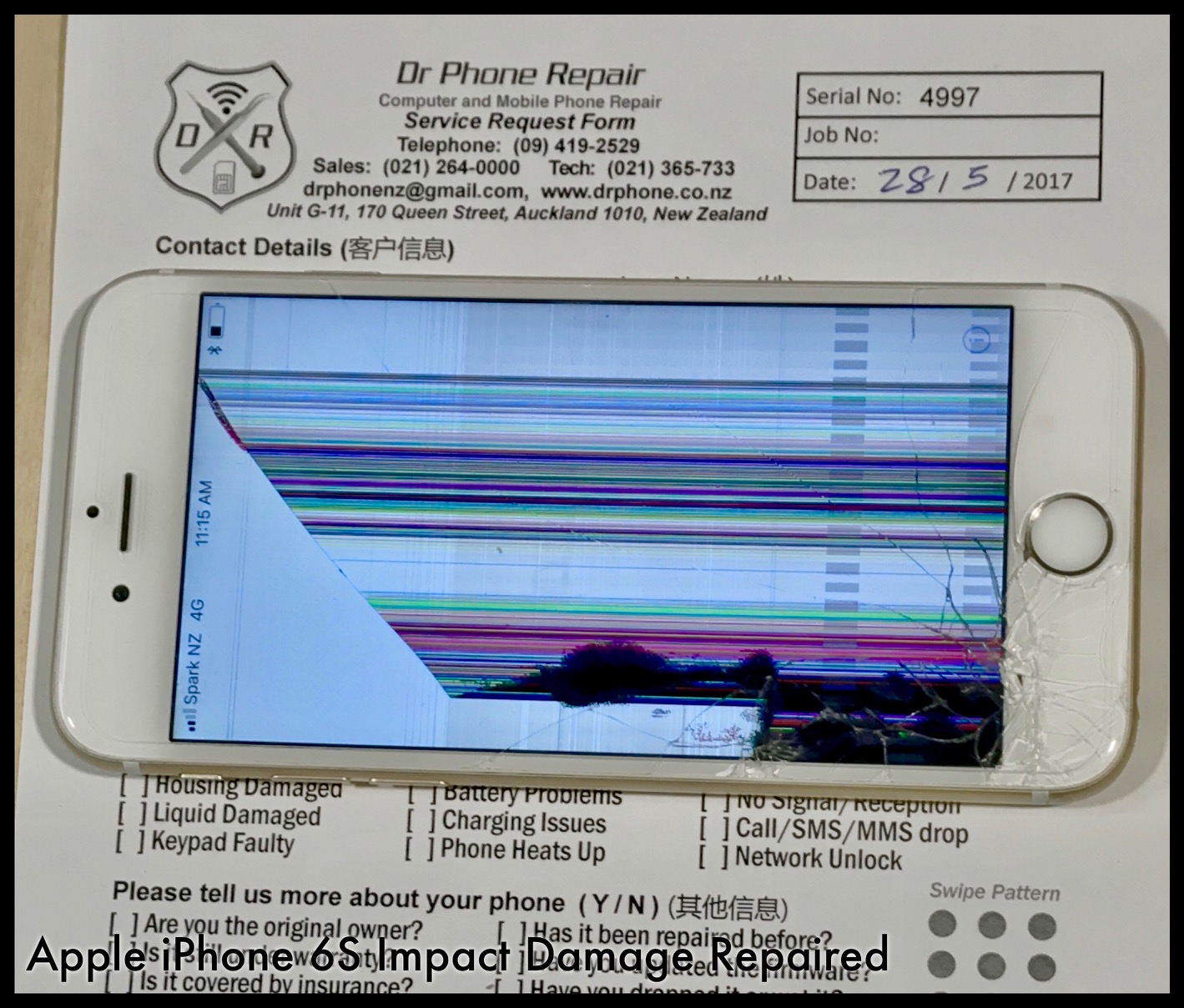
One of the 14 units of Apple iPhone we repaired yesterday. The white unit iPhone 6S shown in the picture, belongs to our returning clinet; he had been using our service since 2014.
We replaced the front module for this Apple iPhone 6S in about 25 minutes after inspecting for any hidden faults (that could be a a result of collateral damage). This was dropped from the roof of client's car!
Apple iPhone 6S specification:
Weight: 143g.
Dimension: 138.3 x 67.1 x 7.1mm.
OS: iOS 9 (upgrades to iOS 10)
Screen size: 4.7-inch.
Resolution: 750 x 1334.
CPU: Apple A9.
RAM: 2GB.
Storage: 16/32/64/128GB

We like to share with you some questions our repair client as us quite frequently:
Is the iPhone 6 s water resistant?
The bottom line is that Apple didn't highlight waterproofing as a new feature because the iPhone 6s and iPhone 6s Plus aren't waterproof. They may be mildly water resistant, and may be able to survive a speedy dunk, if King Neptune gets a proper grip on your shiny new handset, it's history.
Is the i phone 6s bigger than the 6?
Yes the iPhone 6S is actually slightly larger than the iPhone 6 and 11% heavier. We will come to 'why' in the next section, but the good news is the iPhone 6S does retain the same premium build quality and feel as the iPhone 6
Is there a 32 GB iPhone 6s?
Apple ditches 32GB capacity for iPhone 6, offers storage sizes of 16, 64 & 128GB starting at $199. Apple's new iPhone 6 and iPhone 6 Plus will offer users more storage than ever before, topping out at a whopping 128 gigabytes of space on high-end models of its two new handsets.
How much mAH does it take to fully charge an iPhone 6?
The battery capacities for iPhone 6 is 1810 mAh, while it for iPhone 6 Plus is 2915mAh. Both of them have the build-in battery, so you can't just take it out and change another to support. The only way is to charge it by either charger or power banks.
Is Iphone 6s waterproof test?
iPhone 6s Surprisingly Water Resistant, but Not Waterproof. Since the iPhone 6s and iPhone 6s Plus have been out for a few days, some users have begun to test the breaking point of the new devices, especially in regards to the possibility of water resistance.
Is the 7 the same size as the 6?
Case in point: The new flagship iPhones are the exact same size as last year's iPhone 6s and iPhone 6s Plus, respectively. They're a bit lighter, but the iPhone 7 still measures 138.3mm x 67.1mm x 7.1mm, while the iPhone 7 Plus is still at 158.2mm x 77.9mm x 7.3mm. The display sizes haven't changed, either.
This year's iPhone 6s lineup is slightly thicker and heavier, but not enough to make cases designed for the iPhone 6 obsolete. Cases for last year's phone should fit the iPhone 6s just fine. Though cases will continue to fit with the latest models, the new iPhone 6s lineup is slightly thicker than the iPhone 6 models.
What is the difference between Iphone 6 and Iphone se?
iPhone SE has a 4-inch screen with 1136x640 pixels at 326 ppi. That's the same size as the old iPhone 5 and iPhone 5s. ... iPhone 6s has a 4.7-inch screen with 1336x750 pixels at 326 ppi, and the iPhone 6s Plus has a 5.5-inch screen with a 1920x1080-pixel screen at 401 ppi.
Is there a 64 GB Iphone 6s?
When the iPhone 6S was originally released, it came in 16GB, 64GB, and 128GB. However, with the launch of the iPhone 7, Apple changed the available options to 32GB and 128GB only. This is common for them to do this with older iPhone models when the new device launches. ... Apple has removed the option to buy 64 GB iPhones.
How many GB of RAM is on a iphone 6?
Apple has not announced official specs regarding how much RAM is built into the iPhone 6 or iPhone 6 Plus. Leaked benchmarks have indicated the iPhone 6 sports 1 GB of RAM. This is the same amount of RAM found on the iPhone 5s.
How much did the 6s cost when it came out?
Both phones will be released on September 25th, and Apple will open preorders on September 12th. On a two-year contract, the iPhone 6S starts at $199 for the 16GB model, and moves up to US$299 for 64GB and US$399 for 128GB. The iPhone 6S Plus 16GB model starts at $299, and costs US$399 for 64GB and US$499 for 128GB.
What does the S in 6s stand for?
However, Phil Schiller, at the iPhone 3GS release event, said specifically that the S in 3GS stood for "speed", based on how much faster it was than the 3G. Fans also sometimes make up their own meanings for what the s stands for: iPhone 4s: Siri. iPhone 5s: Security (for TouchID)
When did the Apple SE come out?
It was unveiled on March 21, 2016, at Apple's Cupertino headquarters, and was released on March 31, 2016. Despite chronologically succeeding the iPhone 6 family's launch, the iPhone SE serves as a successor of the iPhone 5S.
How long will Apple support the SE?
While the first and second generation of iPhones only received two new iOS versions before being left behind, Apple extended the iPhone's lifetime from four years for the iPhone 3GS and iPhone 4 to five years for the iPhone 4s and iPhone 5, the victim of this year's iOS release.

iphone, x, repair, unlock, dr, doctor, phone, repair, Queen, High, Street, Auckland, screen, Samsung, phone, netowkr, unlock, drphonenz
Our Facebook Page: https://goo.gl/nfzRyv
Google Blog: http://goo.gl/mzvXT5
#drphonerepair, #drphonerepairlimited, #drphonenz, #queenstreetrepair, #aucklandrepair, @drphonenz, #021365733, #093651212, #drphonenz@gmail.com, #davidlim, #davidlimnz, #kevinlim, #kevinlimzz, #facebooklike, #googleblog, #bloggernz, #macBookairrepair, #macbookprorepair, #iPadprorepair, #ipodtouchrepair, #fixiphone, #fixmyiphone, @davidlim,
#samsunggalaxy, #galaxyS8, #galaxyS9, #galaxyS9+, #iPadprorepair, #iPodtouchrepair, #googlenexusrepair, #unlockiPhone, #icloudlock
Monday, 28 May 2018
Used Samsung Galalxy S6 Edge for sales on Trademe.co.nz - Dr Phone Repair, #drphonerepair, #aucklandrepair, #iPhoneXrepair

Dr Phone Repair Limited
1, Huron Street
Takapuna, Auckland 0622
Tel: (09) 365-1122
drphonenz@gmail.com
www.drphone.co.nz

We spotted a tidy little pre-loved or used phone for sale on trademe.co.nz
Below is the full description on this used Samsung Galaxy S6 Edge phone:

Gold Galaxy S6 Edge phone in good condition.
Samsung Galaxy S6 Edge specs
Weight: 153g.
Dimensions: 154.4 x 75.8 x 6.9mm.
OS: Android 6.0.1.
Screen size: 5.7-inch.
Resolution: 1440 x 2560.
CPU: Exynos 7420.
RAM: 4GB. Storage: 32
Why buy from us?
(1) We are the pioneer in mobile phone, laptop and computer repair in North Shore.
Started business on 23 February, 2011. We are still growing and operating in the same shop address
(2) All used phone are covered by one year iron-clad warranty. Warranty is backed by qualified engineer and ample stocks for warrany repair
(3) See the positive feedback on our Google Review
Full tech specs is here https://bit.ly/2KUlN83
There is no PIN lock and no Google Account lock on this phone.
It is not a cheap imported stock from recycle stock (e.g. junk phones from insurance claims).
Bid includes:
(A) The phone itself as show
(B) One usb cable and one wall charger
(C) One (1) year warranty on all our quality used phones
Bid does not include:
(A) SIM card
(B) Memory Card
== Warranty ==
One year back-to-base warranty upon you sign receipt of the phone from the insured courier.

** Warrnaty Excludes **
(A) Physical drop, liquid damage, misuse and rough handling of the said phone.
(B) Use of faulty cable, wrong charger
(C) Phone is rented out, loan to thrid part or phone is repaired by third party during the warranty period. If the phone has issue, contact us for assistance
(D) This warranty is not transferrable to third party or when you sell it.
(E) If our warranty seal is broken or tempered with on the phone
(F) Warranty does not extend to third party ownership (means you sold it to third party)
Terms of Sales:
(1) Kindly make payment within three (3) days from buying
(2) We accept one lump sum payment, no installments please.
Payment: Online transfer only


#drphonerepair, #aucklandrepair, #queenstreetrepair, #iphonexunlock, #imeiunblock, #screenrepair, #icloudunlock, #icouldunblock, #davidlimnz, #davidlim, @davidlim, #021365733, #newzealandrepair, #Samsung, #Galaxy, S8, S8+, S9, S9+, #Galaxnote, #galaxynote8, #galaxynote9, #jailbreak, #jailbreaknz, @drphonenz,@drphonerepair, @iphonerepair, @iPadProrepair, #crackscreenrepair, #shatteredscreen, "brokenscreen"
Thursday, 24 May 2018
2018 Power User Tips & Tricks: Samsung in the Galaxy S7 and S7 Edge, Dr Phone Repair Limited, @drphonenz, #queenstreetrepair, #iphonerepair, #samsungunlock
Dr Phone Repair Limited (Since 2015)

We reveal the best secret features hidden by Samsung in the Galaxy S7 and S7 Edge, including tips and tricks for improving battery life, storage management, working with two apps at once and how to get started with the S7.

Just bought the new or a used Galaxy S7 or Galaxy S7 Edge and want to know how to get the most out of it? Samsung’s flagship has plenty of cool features hidden amongst the dross and here’s our pick of the most useful, in a handy tips and tricks-style guide.

How to use the Galaxy S7 or S7 Edge comfortably with one hand?
The Galaxy S7 is already a pretty comfortable handset to use with one hand, thanks to its relatively compact 5.1-inch design. However, if you’re still struggling to operate it without both mitts, or you opted for the super-sized 5.5-inch S7 Edge instead, then check out Samsung’s One Handed Mode.
Just head to the S7 or S7 Edge’s Settings, then scroll down to Advanced Features. In here you’ll find the ‘One-handed operation’ setting. In here you’ll find two options: ‘Reduced screen size’, which squashes the usable desktop to the bottom portion of the screen when your triple-tap the home button, and ‘One-handed input’ which moves the keyboard to one side of the screen. Enable whichever option you want with a quick tap.

How to fit more shortcuts onto your Galaxy S7’s desktops
If you’ve got loads of favourite apps or widgets and you want to fit more onto your S7’s home screen or desktops, you can quickly and easily change the display grid size. To do this, press and hold your finger on a spare bit of desktop space and then tap the ‘Screen grid’ option that pops up.
The default setting is a 4×4 grid, allowing a maximum of 16 app shortcuts on each desktop. Instead select 5×5 and you can fit up to 25 shortcuts on your screen instead. Hit ‘Apply’ and you’ll have loads more space to fill.

How to free up storage space on your Galaxy S7
Have you downloaded tons of apps or shot reams of 4K video on your new S7 and already run out of space? Then check out our quick and easy guide to managing storage on the S7, which also shows you how to quickly expand the available storage with a microSD memory card.
How to get better battery life when gaming with the Galaxy S7
If your S7 or S7 Edge is almost out of battery life but you’re still desperate to beat your high score on Flappy Bird, then try the Game Launcher’s Save Power mode to preserve your battery dregs.
Open the Game Launcher by tapping the icon in your apps tray, then tap the power modes option beneath the list of available games. There are three modes to choose from. ‘Save Power’ reduces the resolution of your game as well as knocking down the framerate to 30FPS. Or, if you’re almost out of juice entirely, you can choose the ‘Save Maximum Power’ option instead, which bumps the resolution down even lower. With that done, open your game through the Game Launcher and your chosen changes will take effect.

1.) Adjust Always On Display (AOD) Settings On S7 And S7 Edge
One of the best features on the Samsung Galaxy S7 and S7 Edge is called Always On Display (AOD). This feature lets you make the screen light up a smaller number of pixels, meaning it prevents unused pixels from consuming energy.
The Always On Display (AOD) mode shows the clock, the date, the battery percentage, missed calls and message alerts on the lock screen without using much power. The AOD also has customization options.
You can turn on the Always On Display feature by going to Settings > Display > Always On Display > (Toggle On). And you can select what you want the Always On Display to show by selecting “Content to show.”
2.) Adjust Color Saturation On The S7 Edge
Did you know that you can adjust the color saturation on your S7 Edge? The AMOLED display on the S7 Edge displays bright and sharp colors, but it may be too much for some people. That is why you can adjust the screen by going to Settings > Display > Screen and switching from “Adaptive display” to “Basic.” Other options include “AMOLED Cinema” and “AMOLED Photo.”
3.) Adjust Sound Equalizer On S7 And S7 Edge
If you are listening to music on your Galaxy S7 and S7 Edge and wanted to make your tunes more interesting, then you should check out the sound equalizer feature. This option is located in Settings > Sounds and Vibration > Sound quality and effects (scroll down towards the bottom) > Equalizer. There are options like UHQ upscaler, Surround and Tube Amp Pro. But you can also adjust the equalizer by rotating the bass, treble, instrument and vocal knobs. This feature is best used while using headphones.
4.) Adjust The Feeds On The S7 Edge
The S7 Edge is distinguishable from smartphones made by Apple, LG and HTC by having a curved screen. The Edge screen makes it easier to see notifications if your phone is placed face down. Swiping your finger along the Edge activates the tickers of information such as the time, missed calls, news feeds, stock quotes, weather reports, etc. You can customize the feeds that appear on your Galaxy S7 Edge by going to Settings > Edge screen > Edge feeds. Then check mark the feeds that you want from the settings menu.
5.) Adjust Notifications On S7 And S7 Edge
One of my biggest pet peeves about having a lot of apps downloaded on my smartphone is the constant notifications. Fortunately, you can tone down the notifications you receive by going to Settings > Notifications > Select on or off for each app. You can also adjust the type of notification by selecting “Advanced” at the top right and picking either Priority Notifications, Popup notifications and Hide on lock screen options.
If you receive a notification from an app, then you can also quickly adjust its settings by pulling it down and tapping on the "info" icon. You can also see the individual app notifications by going to: Settings > Applications > App Of Choice > Notifications.
6.) Block Interruptions While You Are Gaming On S7 And S7 Edge
I'm not a fan of receiving notifications while I'm playing games on my smartphone, but the Galaxy S7 and S7 Edge allows you to control that problem. When you go to Settings > Advanced features > Games, there is an option to turn off notifications. And you can also lock the Recent and Back keys so they are not accidentally pushed.
7.) Block Swear Words On S7 And S7 Edge
When you use the voice-to-text feature, there is a way to replace swear words with asterisks. This makes the Galaxy S7 smartphones more family-friendly. You can set up this feature by going to Settings > Language and input > Google voice typing > Block offensive words.

8.) Customize The S7 Edge Panel Handle
The Edge Panel on the S7 Edge is customizable. You can adjust the S7 Edge panel by going to Settings > Edge screen > Edge panels > Edge panel handle settings. This setting lets you decide the Edge panel handle position, size and transparency.
Through the new Edge UX, Samsung will let you use up to 9 panels at a time by swiping through them and you can place the panels you use the most ahead of the other ones. You can reorder the panels by swiping open the Edge interface, selecting the Settings icon and then tapping on the reorder button at the top right. And you can add new content to the Edge Panels by tapping on the "+" icon. The settings icon at the bottom left provides access to additional settings.
The colors that you select for the People Edge panel will be the same one used when the S7 Edge lights up if the device is face down. People Edge lets you select five contacts and the Tasks Edge lets you create 10 shortcuts for tasks like sending text messages and taking photos. You can also download additional panel options.
9.) Hide App Notifications From The Lock Screen On S7 And S7 Edge
Sometimes you may not want notifications to appear on the lock screen of your devices in case someone is looking over your shoulder. This is especially true for text messages. Fortunately you can hide app notifications from the lock screen by going to Settings > Lock screen and security > Notifications on Lock Screen > Content on Lock Screen. Within that menu, you can toggle the app notifications on or off. Tapping on “Hide Content” lets you receive notifications, but the content of the notification will be hidden. So you will receive text message notifications, but the actual content of the text message will be hidden.
10.) Identify Unsaved Callers On S7 And S7 Edge
Sometimes you may receive phone calls from people that you do not know, including telemarketers. A useful feature on the S7 and the S7 Edge is the ability to identify unsaved numbers. You can access this feature by going to Settings > Advanced features > Identify unsaved numbers. Then switch on the feature to set up the caller identification.
11.) Increase Your Privacy By Turning Off App Location Tracking On S7 And S7 Edge
When apps track your location, it can be useful for finding relevant content based on where you are. But this feature eats up substantial amounts of battery life. In the interest of privacy, there are also some apps that you may not want tracking your location. You can control app location tracking by going to Settings > Privacy and safety > App permissions > Location. Then toggle the apps on or off that you want to have tracking your location.
12.) One-Handed Operation On S7 Edge
At 5.5-inches, the display size of the S7 Edge is larger than many other smartphones. But this makes it harder to use the device with one hand. Fortunately, there is a way to adjust the device so it is easier to control with one hand. Under Settings > Advanced Features, you will see a One-handed operation feature. This feature reduces the home screen size and readjusts the keyboards so that it moves closer to the display side, thus making the device easier to use with one hand.
13.) Pin Windows On S7 And S7 Edge
Did you know there is a way to pin an app on the screen? This feature comes in handy if someone borrows your phone and walks away because it prevents the ability to open other apps. The window pinning feature was added in Android Marshmallow, but it can be tricky to find.
You can find the pin window feature by going to Settings > Lock screen and security > Other security settings. Then scroll down to Pin windows and turn it on. From there, you can tap on the Recents app button and tap on the pin icon at the bottom right corner of the app that you want to have pinned.
14.) Record Game Play On S7 Or S7 Edge
If you are playing a game on your S7 or S7 Edge, then you may be interested in a feature that allows you to take a screenshot or a video. This feature can be switched on by going to Settings > Advanced features > Games > Game Tools. After enabling this feature, you will notice a floating button with screenshot and video options while you are gaming. This feature is definitely handy for people that like to share their gaming experience on YouTube.
15.) Remind Yourself About Notifications On S7 And S7 Edge
There may be cases where you may want to be reminded about all of the notifications you have on the S7 and S7 Edge. You can set this up by going to Settings > Accessibility > Notification reminder.
The Notification reminder menu allows you to set alerts via vibration or sound when there are unread notifications. The Reminder interval lets you set the number of minutes that you want to be reminded about the notification. And the apps that you want to receive notifications from are selectable in the menu.
16.) Save Photos To MicroSD Card On S7 And S7 Edge
The Galaxy S7 and S7 Edge devices have up to 32GB of internal memory storage, but you can substantially expand the available storage by using a microSD card (up to an additional 200GB). And there is a way to store your photos on that 200GB memory card. You can set up this feature by going to the Camera App > Settings > Storage Location > SD Card.
17.) Schedule Restarts On S7 And S7 Edge
From time to time it is a good idea to restart your S7 or S7 Edge for memory management reasons or if your device freezes up. The Galaxy S7 and S7 Edge allows you to schedule reboots under Settings > Backup & reset > Auto restart where you can set the recurring times.
18.) Send SOS Messages For Emergencies On S7 And S7 Edge
The S7 and S7 Edge can come in handy in case of emergency. You can enable the ability to send SOS messages under Settings > Privacy and Safety > Send SOS Messages.
Once you activate this feature, you can send SOS messages to your emergency contacts by quickly pressing the power button 3 times consecutively. This feature also lets you automatically attach photos and audio recordings so your emergency contacts can find out what the emergency situation is about.
19.) Set Up Quick Launch For Camera On S7 And S7 Edge
Whenever there is a memorable event, then you may want to be able to quickly access your phone camera. That is why you should turn on the Quick Launch Camera feature. You can set this up by going to Settings > Advanced Features > Quick launch camera. When this feature is activated, you can double press the Home button to launch the camera. This feature works even if the S7 or S7 Edge is locked.
20.) Set Up Sound Detectors Like Doorbells And Baby Crying On S7 And S7 Edge
The S7 and S7 Edge devices have the ability to detect whether your doorbell has rung or where there is a baby crying for alerting purposes. This can be helpful if you have headphones on or you are in another room. You can activate this feature by going to Settings > Accessibility > Hearing > Sound detectors. Under this menu, you can toggle on/off the Baby crying detector or Doorbell detector. The toggle will request you to record the sound of the doorbell so that your device can detect it in the future.
21.) Set Up Swipe Keyboard On S7 And S7 Edge
The S7 and S7 Edge supports various swipe keyboards. A swipe keyboard allows you to drag your finger across the keyboard between letters so that your device can predict what you are typing even if the swipes are not accurate. You can turn this feature on by going to Settings > Language and input > Samsung Keyboard > Keyboard Swipe. This feature does not prevent you from typing words normally.
22.) Set Mobile Data Limits To Prevent Overage Charges On S7 And S7 Edge
Last month, I surpassed my mobile data limit and so I had to pay more for my monthly bill. Mobile data can be quickly consumed after watching a few videos and streaming music through your data connection. However, Samsung has made it easier to curb overage charges by offering a mobile data limit feature.
This feature is available at Settings > Data Usage > Set Mobile Data Limit. From there, set the limit to your data threshold. And drag the alert level to the threshold that you want.
If there are apps that consume too much data, you can prevent this from happening going forward by going to Data Usage > Background Data > Apps. It is also recommended that you turn off Data Roaming under Settings > Mobile Networks > Data Roaming.

23.) Set Up Condensed Display Mode Using Nova Launcher On S7 And S7 Edge
An XDA-Developer user discovered that the S7 and S7 Edge devices have a hidden DPI scaling setting that essentially “condenses” display. The setting is maintained through the Nova Launcher. When you open Nova Launcher, long press an empty space and select “ Widgets.” Then drag and drop the “Activities” widget onto the home screen.
From there, find the “Settings” folder and select .DisplayScalingActivity. That will create a new icon on the home screen. Then tap on the icon and select the “Condensed” display mode after the activity opens. You will need to restart your Galaxy S7 after those steps are done. And you can switch back to your other Launcher after all the steps have been completed.
24.) Share Files Using Android Beam On S7 And S7 Edge
Using NFC, you can share files rapidly through Android Beam. After Android Beam is turned on, you can share files with other Android devices that have NFC.
This feature can be enabled under Settings > NFC and Payment > Android Beam. When you select the file you want to share, select the Android Beam option after tapping on the Share button. Holding the rears of the NFC-enabled Android devices should allow you to share the files using Android Beam.
25.) Switch Off Flipboard Briefing On S7 And S7 Edge
One of the unnecessary features built into the Galaxy S7 and S7 Edge is Flipboard Briefing. Flipboard Briefing is a news feature that shows content tailored to your interests that appears on the far left page of the home screen.
This feature may be useful for some people, but there is a chance you not want it. You can turn off Flipboard Briefing by launching the home screen settings and pinching / swiping right to the Flipboard Briefing page. Then use the toggle off switch at the top right.
26.) Turn On Download Booster On S7 And S7 Edge
In case you want to download apps or other files at a rapid pace, there is a way to make it happen using the Download Booster. As a warning, this feature uses your Wi-Fi and data connection combined to download the files. You can turn on the Download Booster by going to Settings > More connection settings > Download Booster.
27.) Turn On “Easy Mode” For People Not Familiar With The S7 And S7 Edge
In case someone wants to borrow your Galaxy S7 or S7 Edge and he or she is not used to the Android user interface, you can enable the “Easy Mode” function. The “Easy Mode” function can be enabled under Settings >Personalization > Easy Mode.
You can also customize which apps that you want included in Easy Mode. On the home screen, there are three pages and one of the pages has widgets like clock, calendar and weather. Other widgets that you can add include the phone, messages, web browser and the flashlight. And you can add more functions to the Galaxy S7 “Easy Mode” by tapping on the “+” signs on the home screen as well.
28.) Turn On/Off Fast Charging On S7 And S7 Edge
One of the biggest pain points for smartphones is battery life. Having to charge your phone every single night and day can be a nuisance especially if you are constantly traveling.
But the Samsung Galaxy S7 and S7 Edge devices are known for being able to charge quickly. Now Samsung lets you control fast charging within Setting > Battery > Fast Cable Charging and Fast Wireless Charging. The problem with fast charging is that your device may become hot while the feature is turned on. Switching off the fast charging feature prevents that from happening.
29.) Turn Off Smart Alert To Conserve Battery On S7 And S7 Edge
The Smart Alert feature comes in handy if you have missed a call or message notification. The phone will vibrate the next time you pick it up from a flat surface if there is a missed notification. This feature can be a battery drainer though. You can control this feature by going to Settings > Advanced Features > Smart Alert.
30.) Utilize Split Screen Mode On S7 And S7 Edge
On the S7 you can use two apps at the same time side-by-side. You can set this feature up by holding down the recent key and then tapping the icon with 2 rectangles at the top right of split screen compatible apps. Then select an app on the bottom. From there, the apps you selected are split between the top and the bottom of the screen.
Once the apps are in split screen mode, you can adjust it by dragging the circle icon up or down to adjust where the apps are split. Tapping on the circular arrow icons swaps the top and bottom screens. And tapping the pointing hand icon allows you to drag and drop content between the windows.

Tel: (09) 365-1212, Mobile: (021) 365-733


Just bought the new or a used Galaxy S7 or Galaxy S7 Edge and want to know how to get the most out of it? Samsung’s flagship has plenty of cool features hidden amongst the dross and here’s our pick of the most useful, in a handy tips and tricks-style guide.

How to use the Galaxy S7 or S7 Edge comfortably with one hand?
The Galaxy S7 is already a pretty comfortable handset to use with one hand, thanks to its relatively compact 5.1-inch design. However, if you’re still struggling to operate it without both mitts, or you opted for the super-sized 5.5-inch S7 Edge instead, then check out Samsung’s One Handed Mode.
Just head to the S7 or S7 Edge’s Settings, then scroll down to Advanced Features. In here you’ll find the ‘One-handed operation’ setting. In here you’ll find two options: ‘Reduced screen size’, which squashes the usable desktop to the bottom portion of the screen when your triple-tap the home button, and ‘One-handed input’ which moves the keyboard to one side of the screen. Enable whichever option you want with a quick tap.

How to fit more shortcuts onto your Galaxy S7’s desktops
If you’ve got loads of favourite apps or widgets and you want to fit more onto your S7’s home screen or desktops, you can quickly and easily change the display grid size. To do this, press and hold your finger on a spare bit of desktop space and then tap the ‘Screen grid’ option that pops up.
The default setting is a 4×4 grid, allowing a maximum of 16 app shortcuts on each desktop. Instead select 5×5 and you can fit up to 25 shortcuts on your screen instead. Hit ‘Apply’ and you’ll have loads more space to fill.

How to free up storage space on your Galaxy S7
Have you downloaded tons of apps or shot reams of 4K video on your new S7 and already run out of space? Then check out our quick and easy guide to managing storage on the S7, which also shows you how to quickly expand the available storage with a microSD memory card.
How to get better battery life when gaming with the Galaxy S7
If your S7 or S7 Edge is almost out of battery life but you’re still desperate to beat your high score on Flappy Bird, then try the Game Launcher’s Save Power mode to preserve your battery dregs.
Open the Game Launcher by tapping the icon in your apps tray, then tap the power modes option beneath the list of available games. There are three modes to choose from. ‘Save Power’ reduces the resolution of your game as well as knocking down the framerate to 30FPS. Or, if you’re almost out of juice entirely, you can choose the ‘Save Maximum Power’ option instead, which bumps the resolution down even lower. With that done, open your game through the Game Launcher and your chosen changes will take effect.

1.) Adjust Always On Display (AOD) Settings On S7 And S7 Edge
One of the best features on the Samsung Galaxy S7 and S7 Edge is called Always On Display (AOD). This feature lets you make the screen light up a smaller number of pixels, meaning it prevents unused pixels from consuming energy.
The Always On Display (AOD) mode shows the clock, the date, the battery percentage, missed calls and message alerts on the lock screen without using much power. The AOD also has customization options.
You can turn on the Always On Display feature by going to Settings > Display > Always On Display > (Toggle On). And you can select what you want the Always On Display to show by selecting “Content to show.”
2.) Adjust Color Saturation On The S7 Edge
Did you know that you can adjust the color saturation on your S7 Edge? The AMOLED display on the S7 Edge displays bright and sharp colors, but it may be too much for some people. That is why you can adjust the screen by going to Settings > Display > Screen and switching from “Adaptive display” to “Basic.” Other options include “AMOLED Cinema” and “AMOLED Photo.”
3.) Adjust Sound Equalizer On S7 And S7 Edge
If you are listening to music on your Galaxy S7 and S7 Edge and wanted to make your tunes more interesting, then you should check out the sound equalizer feature. This option is located in Settings > Sounds and Vibration > Sound quality and effects (scroll down towards the bottom) > Equalizer. There are options like UHQ upscaler, Surround and Tube Amp Pro. But you can also adjust the equalizer by rotating the bass, treble, instrument and vocal knobs. This feature is best used while using headphones.
4.) Adjust The Feeds On The S7 Edge
The S7 Edge is distinguishable from smartphones made by Apple, LG and HTC by having a curved screen. The Edge screen makes it easier to see notifications if your phone is placed face down. Swiping your finger along the Edge activates the tickers of information such as the time, missed calls, news feeds, stock quotes, weather reports, etc. You can customize the feeds that appear on your Galaxy S7 Edge by going to Settings > Edge screen > Edge feeds. Then check mark the feeds that you want from the settings menu.
5.) Adjust Notifications On S7 And S7 Edge
One of my biggest pet peeves about having a lot of apps downloaded on my smartphone is the constant notifications. Fortunately, you can tone down the notifications you receive by going to Settings > Notifications > Select on or off for each app. You can also adjust the type of notification by selecting “Advanced” at the top right and picking either Priority Notifications, Popup notifications and Hide on lock screen options.
If you receive a notification from an app, then you can also quickly adjust its settings by pulling it down and tapping on the "info" icon. You can also see the individual app notifications by going to: Settings > Applications > App Of Choice > Notifications.
6.) Block Interruptions While You Are Gaming On S7 And S7 Edge
I'm not a fan of receiving notifications while I'm playing games on my smartphone, but the Galaxy S7 and S7 Edge allows you to control that problem. When you go to Settings > Advanced features > Games, there is an option to turn off notifications. And you can also lock the Recent and Back keys so they are not accidentally pushed.
7.) Block Swear Words On S7 And S7 Edge
When you use the voice-to-text feature, there is a way to replace swear words with asterisks. This makes the Galaxy S7 smartphones more family-friendly. You can set up this feature by going to Settings > Language and input > Google voice typing > Block offensive words.

8.) Customize The S7 Edge Panel Handle
The Edge Panel on the S7 Edge is customizable. You can adjust the S7 Edge panel by going to Settings > Edge screen > Edge panels > Edge panel handle settings. This setting lets you decide the Edge panel handle position, size and transparency.
Through the new Edge UX, Samsung will let you use up to 9 panels at a time by swiping through them and you can place the panels you use the most ahead of the other ones. You can reorder the panels by swiping open the Edge interface, selecting the Settings icon and then tapping on the reorder button at the top right. And you can add new content to the Edge Panels by tapping on the "+" icon. The settings icon at the bottom left provides access to additional settings.
The colors that you select for the People Edge panel will be the same one used when the S7 Edge lights up if the device is face down. People Edge lets you select five contacts and the Tasks Edge lets you create 10 shortcuts for tasks like sending text messages and taking photos. You can also download additional panel options.
9.) Hide App Notifications From The Lock Screen On S7 And S7 Edge
Sometimes you may not want notifications to appear on the lock screen of your devices in case someone is looking over your shoulder. This is especially true for text messages. Fortunately you can hide app notifications from the lock screen by going to Settings > Lock screen and security > Notifications on Lock Screen > Content on Lock Screen. Within that menu, you can toggle the app notifications on or off. Tapping on “Hide Content” lets you receive notifications, but the content of the notification will be hidden. So you will receive text message notifications, but the actual content of the text message will be hidden.
10.) Identify Unsaved Callers On S7 And S7 Edge
Sometimes you may receive phone calls from people that you do not know, including telemarketers. A useful feature on the S7 and the S7 Edge is the ability to identify unsaved numbers. You can access this feature by going to Settings > Advanced features > Identify unsaved numbers. Then switch on the feature to set up the caller identification.
11.) Increase Your Privacy By Turning Off App Location Tracking On S7 And S7 Edge
When apps track your location, it can be useful for finding relevant content based on where you are. But this feature eats up substantial amounts of battery life. In the interest of privacy, there are also some apps that you may not want tracking your location. You can control app location tracking by going to Settings > Privacy and safety > App permissions > Location. Then toggle the apps on or off that you want to have tracking your location.
12.) One-Handed Operation On S7 Edge
At 5.5-inches, the display size of the S7 Edge is larger than many other smartphones. But this makes it harder to use the device with one hand. Fortunately, there is a way to adjust the device so it is easier to control with one hand. Under Settings > Advanced Features, you will see a One-handed operation feature. This feature reduces the home screen size and readjusts the keyboards so that it moves closer to the display side, thus making the device easier to use with one hand.
13.) Pin Windows On S7 And S7 Edge
Did you know there is a way to pin an app on the screen? This feature comes in handy if someone borrows your phone and walks away because it prevents the ability to open other apps. The window pinning feature was added in Android Marshmallow, but it can be tricky to find.
You can find the pin window feature by going to Settings > Lock screen and security > Other security settings. Then scroll down to Pin windows and turn it on. From there, you can tap on the Recents app button and tap on the pin icon at the bottom right corner of the app that you want to have pinned.
14.) Record Game Play On S7 Or S7 Edge
If you are playing a game on your S7 or S7 Edge, then you may be interested in a feature that allows you to take a screenshot or a video. This feature can be switched on by going to Settings > Advanced features > Games > Game Tools. After enabling this feature, you will notice a floating button with screenshot and video options while you are gaming. This feature is definitely handy for people that like to share their gaming experience on YouTube.
15.) Remind Yourself About Notifications On S7 And S7 Edge
There may be cases where you may want to be reminded about all of the notifications you have on the S7 and S7 Edge. You can set this up by going to Settings > Accessibility > Notification reminder.
The Notification reminder menu allows you to set alerts via vibration or sound when there are unread notifications. The Reminder interval lets you set the number of minutes that you want to be reminded about the notification. And the apps that you want to receive notifications from are selectable in the menu.
16.) Save Photos To MicroSD Card On S7 And S7 Edge
The Galaxy S7 and S7 Edge devices have up to 32GB of internal memory storage, but you can substantially expand the available storage by using a microSD card (up to an additional 200GB). And there is a way to store your photos on that 200GB memory card. You can set up this feature by going to the Camera App > Settings > Storage Location > SD Card.
17.) Schedule Restarts On S7 And S7 Edge
From time to time it is a good idea to restart your S7 or S7 Edge for memory management reasons or if your device freezes up. The Galaxy S7 and S7 Edge allows you to schedule reboots under Settings > Backup & reset > Auto restart where you can set the recurring times.
18.) Send SOS Messages For Emergencies On S7 And S7 Edge
The S7 and S7 Edge can come in handy in case of emergency. You can enable the ability to send SOS messages under Settings > Privacy and Safety > Send SOS Messages.
Once you activate this feature, you can send SOS messages to your emergency contacts by quickly pressing the power button 3 times consecutively. This feature also lets you automatically attach photos and audio recordings so your emergency contacts can find out what the emergency situation is about.
19.) Set Up Quick Launch For Camera On S7 And S7 Edge
Whenever there is a memorable event, then you may want to be able to quickly access your phone camera. That is why you should turn on the Quick Launch Camera feature. You can set this up by going to Settings > Advanced Features > Quick launch camera. When this feature is activated, you can double press the Home button to launch the camera. This feature works even if the S7 or S7 Edge is locked.
20.) Set Up Sound Detectors Like Doorbells And Baby Crying On S7 And S7 Edge
The S7 and S7 Edge devices have the ability to detect whether your doorbell has rung or where there is a baby crying for alerting purposes. This can be helpful if you have headphones on or you are in another room. You can activate this feature by going to Settings > Accessibility > Hearing > Sound detectors. Under this menu, you can toggle on/off the Baby crying detector or Doorbell detector. The toggle will request you to record the sound of the doorbell so that your device can detect it in the future.
21.) Set Up Swipe Keyboard On S7 And S7 Edge
The S7 and S7 Edge supports various swipe keyboards. A swipe keyboard allows you to drag your finger across the keyboard between letters so that your device can predict what you are typing even if the swipes are not accurate. You can turn this feature on by going to Settings > Language and input > Samsung Keyboard > Keyboard Swipe. This feature does not prevent you from typing words normally.
22.) Set Mobile Data Limits To Prevent Overage Charges On S7 And S7 Edge
Last month, I surpassed my mobile data limit and so I had to pay more for my monthly bill. Mobile data can be quickly consumed after watching a few videos and streaming music through your data connection. However, Samsung has made it easier to curb overage charges by offering a mobile data limit feature.
This feature is available at Settings > Data Usage > Set Mobile Data Limit. From there, set the limit to your data threshold. And drag the alert level to the threshold that you want.
If there are apps that consume too much data, you can prevent this from happening going forward by going to Data Usage > Background Data > Apps. It is also recommended that you turn off Data Roaming under Settings > Mobile Networks > Data Roaming.

23.) Set Up Condensed Display Mode Using Nova Launcher On S7 And S7 Edge
An XDA-Developer user discovered that the S7 and S7 Edge devices have a hidden DPI scaling setting that essentially “condenses” display. The setting is maintained through the Nova Launcher. When you open Nova Launcher, long press an empty space and select “ Widgets.” Then drag and drop the “Activities” widget onto the home screen.
From there, find the “Settings” folder and select .DisplayScalingActivity. That will create a new icon on the home screen. Then tap on the icon and select the “Condensed” display mode after the activity opens. You will need to restart your Galaxy S7 after those steps are done. And you can switch back to your other Launcher after all the steps have been completed.
24.) Share Files Using Android Beam On S7 And S7 Edge
Using NFC, you can share files rapidly through Android Beam. After Android Beam is turned on, you can share files with other Android devices that have NFC.
This feature can be enabled under Settings > NFC and Payment > Android Beam. When you select the file you want to share, select the Android Beam option after tapping on the Share button. Holding the rears of the NFC-enabled Android devices should allow you to share the files using Android Beam.
25.) Switch Off Flipboard Briefing On S7 And S7 Edge
One of the unnecessary features built into the Galaxy S7 and S7 Edge is Flipboard Briefing. Flipboard Briefing is a news feature that shows content tailored to your interests that appears on the far left page of the home screen.
This feature may be useful for some people, but there is a chance you not want it. You can turn off Flipboard Briefing by launching the home screen settings and pinching / swiping right to the Flipboard Briefing page. Then use the toggle off switch at the top right.
26.) Turn On Download Booster On S7 And S7 Edge
In case you want to download apps or other files at a rapid pace, there is a way to make it happen using the Download Booster. As a warning, this feature uses your Wi-Fi and data connection combined to download the files. You can turn on the Download Booster by going to Settings > More connection settings > Download Booster.
27.) Turn On “Easy Mode” For People Not Familiar With The S7 And S7 Edge
In case someone wants to borrow your Galaxy S7 or S7 Edge and he or she is not used to the Android user interface, you can enable the “Easy Mode” function. The “Easy Mode” function can be enabled under Settings >Personalization > Easy Mode.
You can also customize which apps that you want included in Easy Mode. On the home screen, there are three pages and one of the pages has widgets like clock, calendar and weather. Other widgets that you can add include the phone, messages, web browser and the flashlight. And you can add more functions to the Galaxy S7 “Easy Mode” by tapping on the “+” signs on the home screen as well.
28.) Turn On/Off Fast Charging On S7 And S7 Edge
One of the biggest pain points for smartphones is battery life. Having to charge your phone every single night and day can be a nuisance especially if you are constantly traveling.
But the Samsung Galaxy S7 and S7 Edge devices are known for being able to charge quickly. Now Samsung lets you control fast charging within Setting > Battery > Fast Cable Charging and Fast Wireless Charging. The problem with fast charging is that your device may become hot while the feature is turned on. Switching off the fast charging feature prevents that from happening.
29.) Turn Off Smart Alert To Conserve Battery On S7 And S7 Edge
The Smart Alert feature comes in handy if you have missed a call or message notification. The phone will vibrate the next time you pick it up from a flat surface if there is a missed notification. This feature can be a battery drainer though. You can control this feature by going to Settings > Advanced Features > Smart Alert.
30.) Utilize Split Screen Mode On S7 And S7 Edge
On the S7 you can use two apps at the same time side-by-side. You can set this feature up by holding down the recent key and then tapping the icon with 2 rectangles at the top right of split screen compatible apps. Then select an app on the bottom. From there, the apps you selected are split between the top and the bottom of the screen.
Once the apps are in split screen mode, you can adjust it by dragging the circle icon up or down to adjust where the apps are split. Tapping on the circular arrow icons swaps the top and bottom screens. And tapping the pointing hand icon allows you to drag and drop content between the windows.

iphone, x, repair, unlock, dr, doctor, phone, repair, Queen, High, Street, Auckland, screen, Samsung, phone, netowkr, unlock, drphonenz
Our Facebook Page: https://goo.gl/nfzRyv
Google Blog: http://goo.gl/mzvXT5
#drphonerepair, #drphonerepairlimited, #drphonenz, #queenstreetrepair, #aucklandrepair, @drphonenz, #021365733, #093651212, #drphonenz@gmail.com, #davidlim, #davidlimnz, #kevinlim, #kevinlimzz, #facebooklike, #googleblog, #bloggernz, #macBookairrepair, #macbookprorepair, #iPadprorepair, #ipodtouchrepair, #fixiphone, #fixmyiphone, @davidlim,
#samsunggalaxy, #galaxyS8, #galaxyS9, #galaxyS9+, #iPadprorepair, #iPodtouchrepair, #googlenexusrepair, #unlockiPhone, #icloudlock
Tuesday, 22 May 2018
Dr Phone Repair Limited - Sample of our online classified advertisement in Auckland, New Zealand. #drphonerepair, #drphonenz, @drphonenz


If need any help on repairing our Samsung Galaxy S8, S9, iPhone 8 Plus or #iPhone X; please feel free to get in touch with us!
Dr Phone Repair Limited (Since 2015)
Unit G-11, Canterbury Arcade
Queen Street, Auckland CBD 1010
Mobile: +6421365733
Office: (09) 365-1212
Dr Phone Repair Limited (Since 2015)
Unit G-11, Canterbury Arcade
Queen Street, Auckland CBD 1010
Mobile: +6421365733
Office: (09) 365-1212
Wednesday, 14 June 2017
Aukland iPhone 4S Repair and Battery Replacement. Dr Phone Repair Limited, 170, Queen Street, Auckland

14th June, 2017
We haven't see the iPhone 4S much these days; but we still have a returning customer came by to get the battery replaced. Our engineer get it done with 20 minutes for this customer.
iPhone 4S was a legend when it was launched couple years ago. I still remember I was visiting Australia when it was officially launched. The iPhone 4S' design and operating system was miles ahead of the Android smartphones.
Apple iPhone 4S smartphone was launched in October 2011. The phone comes with a 3.50-inch touchscreen display with a resolution of 640 pixels by 960 pixels at a PPI of 326 pixels per inch. Apple iPhone 4S price in India starts from Rs. 10,900.
The Apple iPhone 4S is powered by 800MHz dual-core it comes with 512MB of RAM. The phone packs 16GB of internal storage cannot be expanded. As far as the cameras are concerned, the Apple iPhone 4S packs a 8-megapixel primary camera on the rear and a 0.3-megapixel front shooter for selfies.
The Apple iPhone 4S runs iOS 6.1.3 and is powered by a 1430mAh non removable battery. It measures 115.20 x 58.66 x 9.30 (height x width x thickness) and weigh 140.00 grams.
The Apple iPhone 4S is a single SIM (GSM) smartphone that accepts a Micro-SIM. Connectivity options include Wi-Fi, GPS, Bluetooth and 3G. Sensors on the phone include Compass Magnetometer, Proximity sensor, Accelerometer, Ambient light sensor and Gyroscope.
About Apple. . . . .
Founded in a garage in 1976 by Steve Jobs, Steve Wozniak, and Ronald Wayne, Apple began as a personal computer pioneer that today makes everything from laptops to portable media players. Headquartered in Cupertino, California, the consumer electronics giant entered the smartphone market with the iPhone in 2007, and the tablet market with the iPad in 2010, and the smartwatch market with the Apple Watch in 2014.
G-11, Canterbury Arcade
170 Queen Street, Auckland 1010
Tel: (09) 419-2529
#appleiphone7, #doctorphone, #drphonelimited, #094192529, #02102555888, #facebook, #reapir, #unlock, #icloudlock, #iCloudunlock, #pinunblock, #usediPhone, #usediPadPro, #QueenStreetrepair, #Aucklandrepair, #computerrepair, #fixlaptop, #crackescreen, #screenrepair, #iphoneparts, googlerepair, #samsungrepair, #xperiaz5repair, #huaweirepair, #iphonecord, #usbcharger, #phoneaccessories, #insuranceclaim, #damagerepair, #warrantyrepair, #fixmyiphone, #aucklandcityrepair, #highstreetrepair, #rafaelcabato, #094192529, #iphonesupport, #travelinsuranceclaim, #homecontent, #021365733, #021365377, #smartpocket, #phonecasings
#phonerepairinformation, #liquiddamage, #impactdamage, #datarecovery, #iosupgrade, #ioshelp, #selfiestick
2017 Tech Report: Samsung Galaxy S8 Review. Dr Phone Repair Limited, Queen Street, Auckland 094192529

The Samsung Galaxy S8 and S8+ are the best Android phones you can buy, and they’re not even finished yet. Starting at a fairly steep $750 and $850, respectively, Samsung’s new flagship phones forge a beautiful new path for smartphone design by stripping away unsightly bezels with their respective 5.8- and 6.2-inch infinity displays, and these are the first handsets to boast Qualcomm’s beastly Snapdragon 835 processor for record-breaking performance.
Samsung’s new Bixby virtual assistant is incomplete, and we’re not fans of the fingerprint sensor’s location. But when you add in excellent battery life and improvements to a camera that was already top-notch, you have two winning handsets with the Galaxy S8 and S8+.
The design itself feels like the future! No offense to the LG G6, but the Galaxy S8 exemplifies a bezel-free phone done right. Samsung didn’t just take away the bezels on this phone; it crafted a space-age work of art with a new infinity display that stretches from edge to edge. The Galaxy S8 not only has a slightly bigger screen-to-body ratio than LG’s phone but also looks sleeker because of the way the Gorilla Glass curves toward the edges on the front and back. Other Android phones look like blah, flat slabs by comparison. The S8 is also thinner and narrower than the G6.
You can get more indepth review on this new phone launched recent at this link.
Dr Phone Repair Limited
G-11, Canterbury Arcade
170 Queen Street, Auckland 1010
Tel: (09) 419-2529
#appleiphone7, #doctorphone, #drphonelimited, #094192529, #02102555888, #facebook, #reapir, #unlock, #icloudlock, #iCloudunlock, #pinunblock, #usediPhone, #usediPadPro, #QueenStreetrepair, #Aucklandrepair, #computerrepair, #fixlaptop, #crackescreen, #screenrepair, #iphoneparts, googlerepair, #samsungrepair, #xperiaz5repair, #huaweirepair, #iphonecord, #usbcharger, #phoneaccessories, #insuranceclaim, #damagerepair, #warrantyrepair, #fixmyiphone, #aucklandcityrepair, #highstreetrepair, #rafaelcabato, #094192529, #iphonesupport, #travelinsuranceclaim, #homecontent, #021365733, #021365377, #smartpocket, #phonecasings
#phonerepairinformation, #liquiddamage, #impactdamage, #datarecovery, #iosupgrade, #ioshelp, #selfiestick
Tuesday, 15 March 2016
How to put apple watch in power saving mode: Turn Power saver. Auckland iPhone iPad Repair, drphonerepair, drphone, Queen Street, #iPhonerepair

Dr Phone Repair Limited (Since 2015)
Tel: (09) 365-1212, Mobile: (021) 365-733
 Apple knows about apple watch usage in future, So most of the case you might be suffer from low battery any time. At this moment you need to put your Apple watch in almost dead condition means Smart watch will become simple watch that will only use for see current time. Power reserve functionality works as power saving mode. Here I gave guide with step by step instructions on how to put apple watch in power saving mode. After that how we can put apple watch normal mode for use smart watch app after enough battery. Alternatively you can use small pocket size external charger for Apple watch.
Note: Apple watch Battery conditions with saving tips are, you can use two day continuously after charge 100% (Full battery).

Steps to Enable/ Disable or put apple watch in power saving mode:
Apple watch use on Low battery charging quite interesting but notice that you can only use for time showing purpose, as of discussed in apple watch keynote you can run Power reserve mode for next 72 hours.
Step 1: grip your apple watch on your wrist
Step 2: Press and hold side button placed at below of the digital crown.
Step 3: You will see three options: Power off, Power Saver and Lock device.
Step 4: Swipe toggle on right from the Power saver option
Now put your device normal battery power mode
In the process of revert back in normal mode, you need to restart or shut down watch. For restart follow the above three step and Tap and hold side button and release when apple logo will be shown.
Note: are you fail in any case first check your device updated with latest iOS 8.3 or newer, then pair Apple watch with iPhone.
Still are you facing some problem Put apple watch in power saving mode and might be confuse due to settings accuracy share with us on comment.

#drphonerepair, #drphonerepairlimited, #drphonenz, #queenstreetrepair, #aucklandrepair, @drphonenz, #021365733, #093651212, #drphonenz@gmail.com, #davidlim, #davidlimnz, #kevinlim, #kevinlimzz, #facebooklike, #googleblog, #bloggernz, #macBookairrepair, #macbookprorepair, #iPadprorepair, #ipodtouchrepair, #fixiphone, #fixmyiphone, @davidlim,
#apple, #iPhone, #iphonerepair, #hemantsingh, #hemantinauckland, #hemant, #hemant021, #auckland, #hashtag, #iOS, #iPadPor, #crackescreen, #crackscreenrepair, #macbookrepair, #iPhone5unlock, #iPhone5sunlock, #iPhone6unlock, #iPhone6Sunlock, #iPhone6SPlusunlock, #networkunlock, #IMEIunlock, #VodafoneAustralia, #New, #Zealand, #iPadAir2, #iPadrepair, #iPadProrepair, #iPadAirrepair, #queenstreet, #queenstreetrepair, #02102444496, #021365325, #094192529, +642102444496, +6421365325, +6494192529, #facebook, #instagram, #snapchat, #freesexpicutres, #gaysex, #jobvacancyNZ, #jobvacancyAuckland, #liquiddamagerepair, #insurancereport, #insurancedamagereport, #Manukaurepair, #cityrepair, #idoctorrepair, #ifixit, #ifixyour, #ifixphone, #drphonerepair, #hemantsingh, #dougrobertson, #iphonerepairtools, #LCD, #iphoneparts, #mobilephonerepair, #auckland, #aucklanddesign, #logodesign, #queenstreetshopping, #aucklandshopping, #cbdshopping, #ipadprorepair, #samsungrepair, #GalaxyS5repair, #GalaxyS6repair, #GalaxyS7repair, #iPhone7release, #iPhone7unlock, #021365325, #02102444496, #094192529, #aucklanduniversity, #vodafonerepair, #latestmovies, #warrantyrepair, #sparkiPhone, #indianstudents, #stoleniphonecheck, #blacklisted, #blaclistediPhone, #facebook, #onlineauction, #cheapiPhone, #freesexvideo, #gaysex, #snapchat, #hotgirls, #aucklandclubbings, #instagrampictures, #freemoney, #socialmedia, #googleplus, #google+, #googlesearch, #trending
#clashofclan, #freeapps, #iosapps, #queenstreetrepair, #queenstreetiphonerepair, #queenstreetphonerepair, #aucklandipadrepair, #davidlim
Thursday, 3 March 2016
The first 14 Apple Watch apps you should check out! iOS 9, Apple, iPhone iPad Repair, Unlock, Dr Phone Repair, Queen Street
Without apps, the Apple Watch is nothing more than a glorified timepiece. Here are Apple's included apps, plus a selection of 14 third-party options we think are worth checking out now.

Due to the fact that third-party app makers do not yet have access to the Watch's Software Developers Kit (SDK), some third-party apps are lacking in features. Now, the rumor is that Apple will announce availability of the SDK in June at WWDC, but until then developers won't have access to the Watch's motion sensor, the camera or any of the tech that's actually inside it.
Still, Scott says that out of about the nearly 100 third-party apps he's used over the last few weeks, there are some that are worth trying. Check out the chart and gallery in the third-party apps section at the bottom of the page to get a glimpse of those.
Meanwhile, since Apple does have access to the full capabilities of Apple Watch, its apps are much more polished and useful. Check those out right below.
There are a number of apps that will come with the Apple Watch that help you connect with your iPhone's core functions like Messages, Maps, Calendar and even Siri. They all run extremely smoothly, as expected.
APPLE APPS
| App | Description |
|---|---|
| Activity | Three rings show how long you've moved, exercised and stood. |
| Alarm | Manage, edit and label multiple alarms from your wrist. |
| Calendar | See what's next in your day or month. See reminders for meetings and events. |
| As well as reading email, you can flag it, mark it as read, or delete. | |
| Maps | See your current location and get directions with turn-by-turn navigation. |
| Messages | Dictate or record replies and send animated emoji. |
| Music | Control the music on your iPhone without taking it out of your pocket. |
| Passbook | Store your boarding passes, tickets, loyalty cards and more. |
| Phone | Use the microphone to talk, or transfer to your iPhone, or mute. |
| Photos | Keep your favorite photos on your watch for convenient viewing. |
| Remote | Navigate Apple TV and control the iTunes library on your desktop PC or Mac. |
| Remote Camera | Use your Apple Watch as the viewfinder to take a shot from your iPhone. |
| Settings | Enable or disable Airplane mode, Bluetooth and Do Not Disturb. |
| Siri | Say, 'Hey Siri,' then ask a question, just like on your phone. |
| Stocks | See the price of the stocks you watch at a glance. |
| Stopwatch | Track your lap times with digital, analog and hybrid views. |
| Timer | Set a timer for cooking and other things with a visual countdown graphic. |
| Weather | Check the weather where you are or for any location around the world. |
| Workout | Track your workout, your heart rate and more. |
| World Clock | Check the time in different cities around the globe. |
Third-party apps worth trying right now
Third-party apps don't run as smoothly as the Apple-made ones included on the Apple Watch. But there are several that are still useful when you just want a quick glance at the latest information
| App | Developer | Description |
|---|---|---|
| Check your feed, post a tweet and reply to tweets. | ||
| Starbucks | Starbucks | Use a QR code to pay with your account from your watch. |
| 1Password | AgileBits | Keep your stored account passwords on your watch for easy access. |
| Citibank | Citibank | Track your bank accounts from your watch. |
| MLB At Bat | MLB | Get the latest baseball scores and basic stat info to follow the games of your choice. |
| TV Guide | CBS | See trending shows that you can watch tonight. |
| Evernote | Evernote | Scan your notes and even add new ones using dictation on your watch. |
| NYTimes | NYTimes | Swipe through headlines from your wrist, but you'll need a subscription. |
| TheConverted | Ideon AS | Quick access to favorite conversions and perform any conversion simply by talking to your Apple Watch. |
| TheScore | TheScore | If you want more than baseball, this app will give you the latest updates on your wrist. |
| Yelp | Yelp | Find the best restaurants and other services around you with only a few taps. |
| TripAdvisor | TripAdvisor | Plan and enjoy your perfect trip with over 150 million reviews and opinions by travelers. |
| Elevate | Elevate | Try a brain-training program designed to improve focus, speaking abilities and more. |
| Pandora | Pandora Media | Find out the song playing, or give thumbs up to the song you're listening to. |
Apple Watch
THE BOTTOM LINE: The Apple Watch is the most ambitious, well-constructed smartwatch ever seen, but first-gen shortfalls make it feel more like a fashionable toy than a necessary tool. That may change with a big software update later this year, though.
Subscribe to:
Posts (Atom)